
WhatsApp Integration
Establishing communication via social media platforms like WhatsApp is essential in handling customer requirements and it also helps answer basic inquiries, build the engagement activities easily.
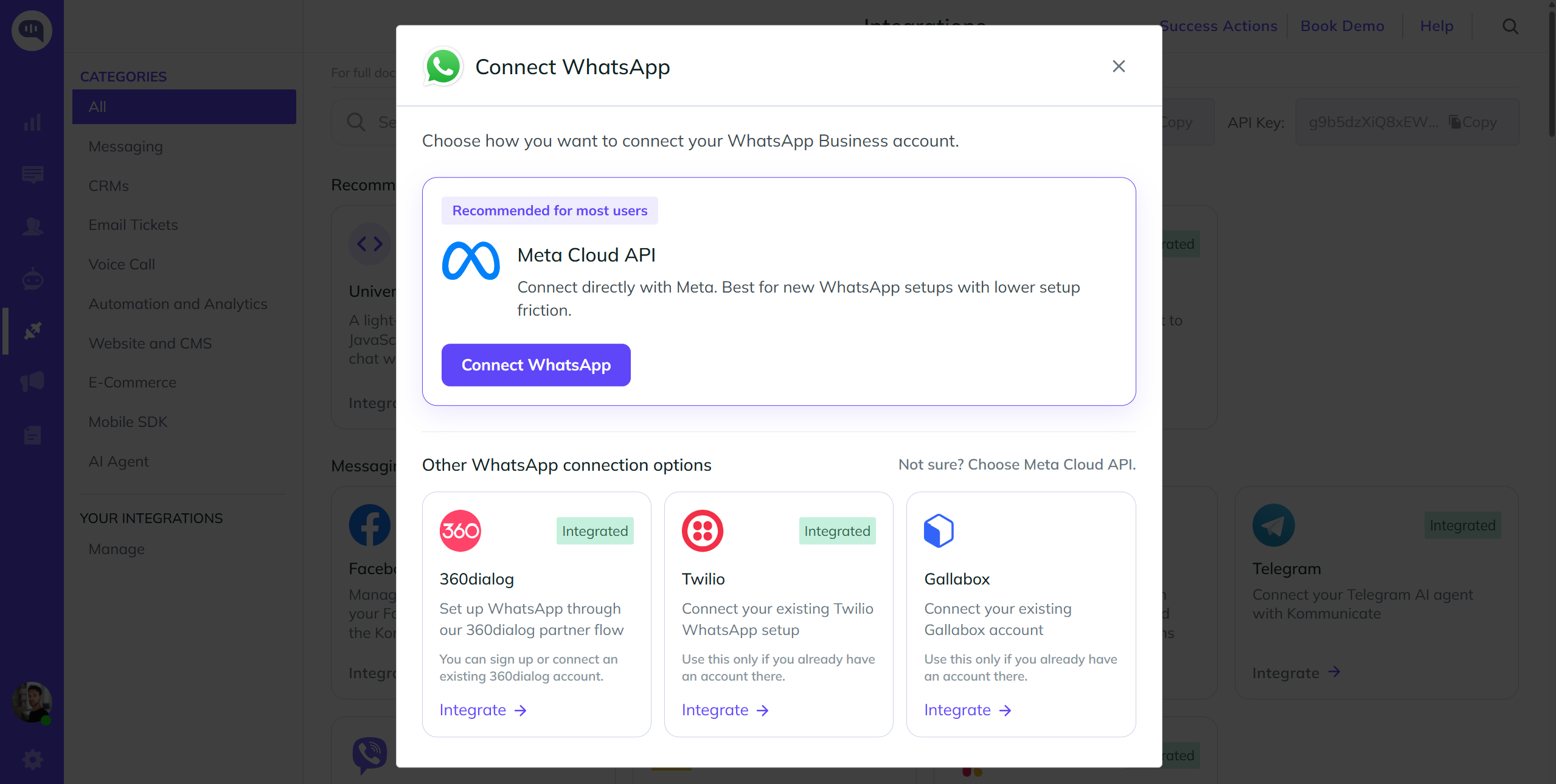
Now Kommunicate allows to integrate with WhatsApp business account and handle the queries via Kommunicate AI agent and with the help of human agents.
We offer integration with WhatsApp using 3 ways
- Integration using 360Dialog
- Integration using Twilio
- Integration using WhatsApp Cloud API
Send Template Message using API
Step 1: Create the Template Object
Create a template object with name, language, and components as mentioned in WhatsApp template API page.
{
   "template": {
      "name": "account_update_whatsapp",
      "language": {
         "code": "en_US",
         "policy": "deterministic"
      },
      "components": [
         {
            "type": "body",
            "parameters": [
               {
                  "type": "text",
                  "text": "your-text-string"
               },
               {
                  "type": "text",
                  "text": "your-text-string"
               }
            ]
         },
         {
            "type": "header",
            "parameters": [
               {
                  "type": "text",
                  "text": "your-text-string"
               }
            ]
         }
      ]
   }
}
As per the above object, "account_update_whatsapp" is the pre-approved template name. In components there are two parameters and one parameter is in Header.
Step 2: Convert it into String and use API to send Template
After creating object, convert it to string using JSON to String Online Converter. Add the string in the "WHATSAPP_TEMPLATE" of send message API.
Below is an example of using API for sending an approved Template named "sample_issue_resolution".
Headers:
api-key: API_KEY_FROM_INSTALL_SECTION'
of-user-id: PASS_SUPER_ADMIN_EMAIL_HERE'
Content-Type: application/json
You can find it in the install section, click here.
POST: https://services.kommunicate.io/rest/ws/conversation/message/send
BODY:
{
    "groupName": "Conversation",
    "platform": "whatsapp",
    "source": "WHATSAPPDIALOG360",
    "senderId": "+91xxxxxxxxxx",
    "receiverId": "+91xxxxxxxxxx",
    "messagePxy": {
        "type": 5,
        "contentType": 0,
        "message": "TEMPLATE MESSAGE",
        "metadata": {
            "skipBot": true,
            "WHATSAPP_TEMPLATE": "{\n   \"template\": {\n      \"name\": \"sample_issue_resolution\",\n      \"language\": {\n         \"code\": \"en_US\",\n         \"policy\": \"deterministic\"\n      },\n      \"components\": [\n         {\n            \"type\": \"body\",\n            \"parameters\": [\n               {\n                  \"type\": \"text\",\n                  \"text\": \"Name - test\"\n               }\n            ]\n         }\n      ]\n   }\n}"
        },
        "source": 1
    }
}
Note: Change
"source"to"WHATSAPPCLOUDAPI"if you use WhatsApp Cloud API, or"WHATSAPPTWILIO"if you use the Twilio integration.
This is how it will look:
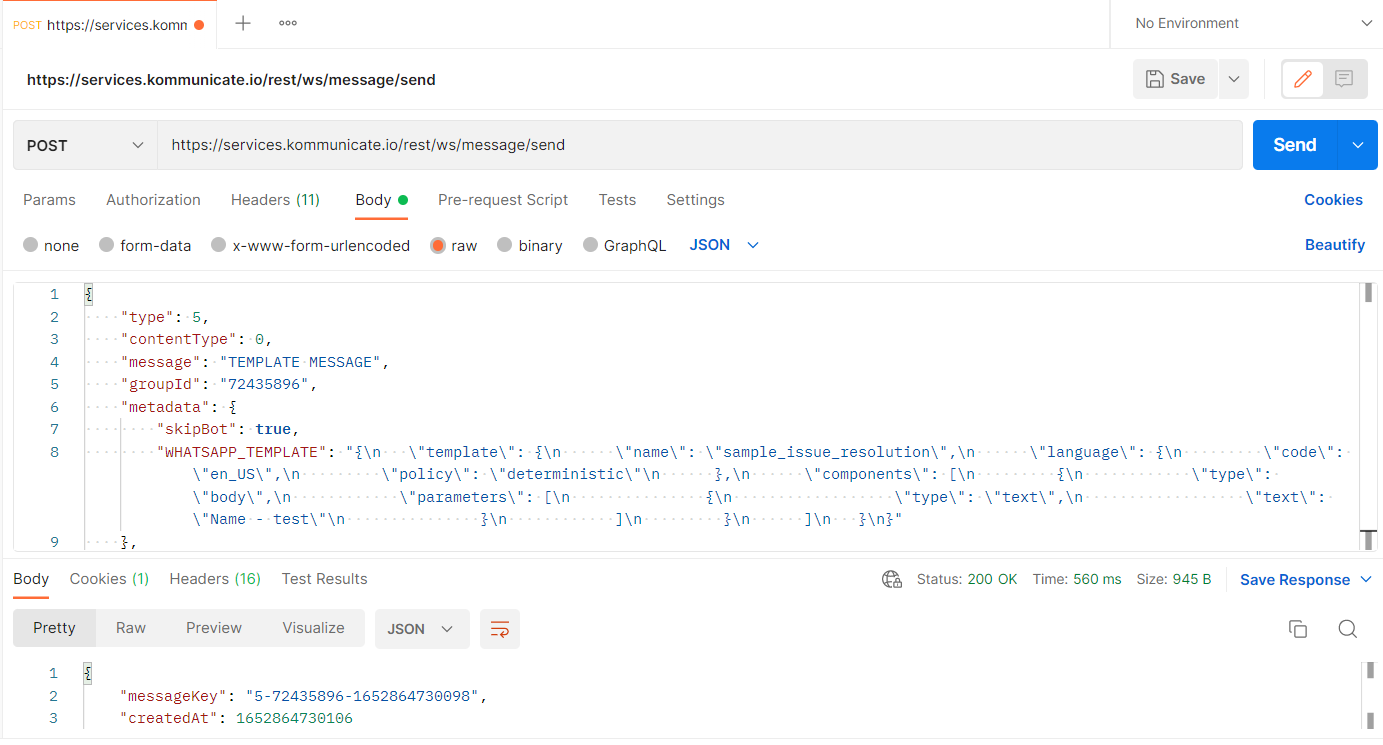
We can check the same on the Kommunicate dashboard, it will show as Template Message and user has received the message as well.
Send Campaign Message through API
Sending templates via API can streamline your communication processes, making it easier to reach your audience with consistent and professional messages. Follow these steps to use the provided CURL command in an API such as Postman.
Step 1: Import the CURL Command into Your API Tool
curl --location 'https://services.kommunicate.io/rest/ws/message/campaign/send' \
--header 'Api-Key: This Key is available in Install section of dashboard' \
--header 'Content-Type: application/json' \
--data '{
  "messagePxyList": [
    {
      "message": "Template Preview",
      "metadata": {
        "WHATSAPP_TEMPLATE": "{\"template\":{\"name\":\"<TEMPLATE_NAME>\",\"language\":{\"policy\":\"deterministic\",\"code\":\"<LANGUAGE_CODE>\"},\"components\":[{\"type\":\"body\",\"parameters\":[<ANY PLACEHOLDER VALUES>]}]}}", // Modify the template per your template values/parameters.
        "skipBot": true


      },
      "type": 5,
      "contentType": 0,
      "key": "payswl",
      "platformSender": "whatsapp:<mobile_number>", // Sender
      "platformName": "<platformName>",
      "source": 1
    }
  ],
  "usernames": [
    "whatsapp:<mobile_number>", // Receiver
    "whatsapp:<mobile_number>" // Add multiple numbers for bulk messaging
  ]

}'
Note:
Input Parameters:
message: Text body of the final message. Keep the message the same as the template preview message.
metadata: Template name, template code(language) and parameters if any.
platformSender: Integrated whatsapp number in the format‘whatsapp:<number with +country code>‘.
platformName: WHATSAPPDIALOG360 for Dialog360, WHATSAPPCLOUDAPI for CloudApi integration.
usernames: Number of the receivers in the format‘whatsapp:<number with +country code>‘.
Upon hitting the API, the template will be sent to the user.
WhatsApp rich messages
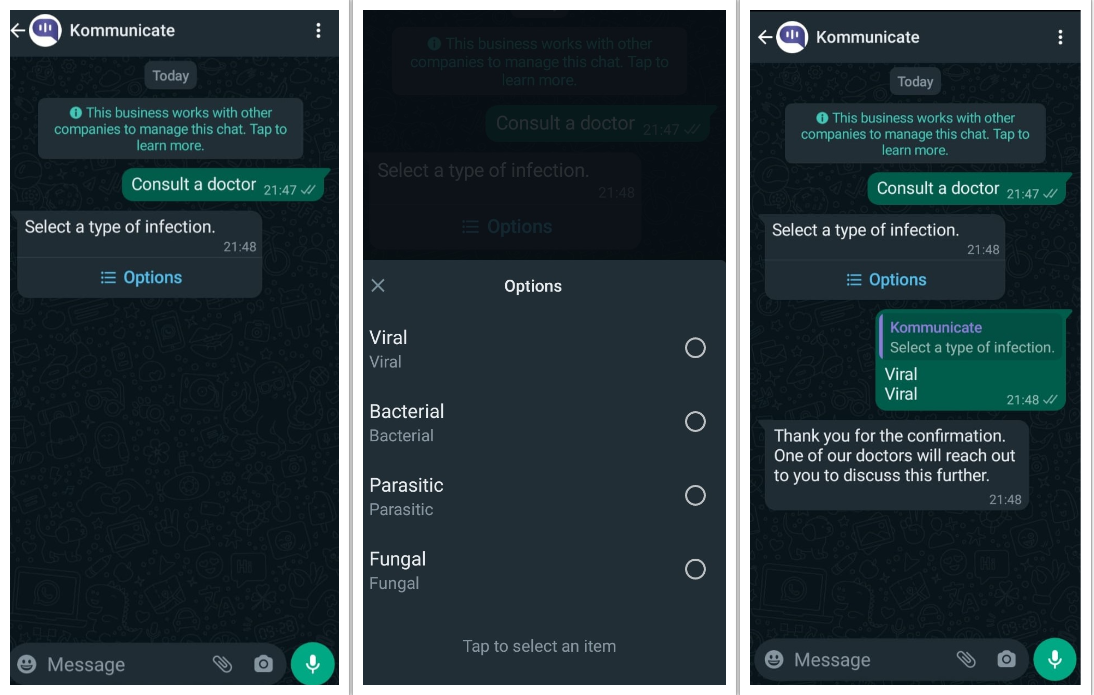
List Message
If you are looking to present customers with multiple choices, you can use this payload.
{
    "metadata": {
        "templateId": "7",
        "contentType": "300",
        "payload": {
            "headerText": "Options",
            "buttons": [
                {
                    "name": "Viral",
                    "action": {
                        "text": "Viral",
                        "type": "quick_reply"
                    }
                },
                {
                    "name": "Bacterial",
                    "action": {
                        "type": "quick_reply",
                        "text": "Bacterial"
                    }
                },
                {
                    "action": {
                        "type": "quick_reply",
                        "text": "Parasitic"
                    },
                    "name": "Parasitic"
                },
                {
                    "name": "Fungal",
                    "action": {
                        "type": "quick_reply",
                        "text": "Fungal"
                    }
                }
            ]
        }
    },
    "platform": "kommunicate",
    "message": "Select a type of infection."
}
Forms
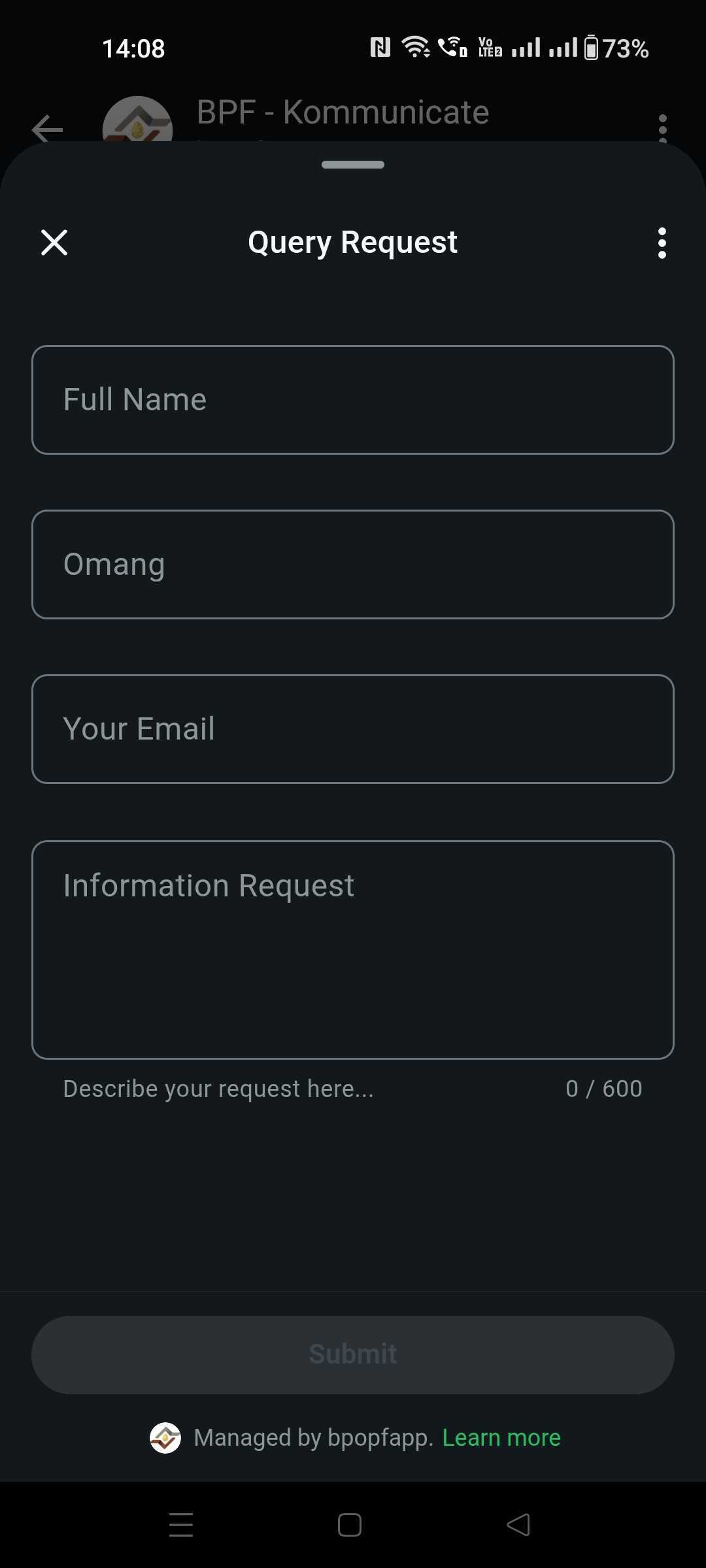
WhatsApp Flows let you send an interactive form in a WhatsApp conversation. Before configuring the form in Kommunicate, create and publish the flow in Meta's WhatsApp Manager.
- Log in to your Meta for Developers account associated with your WhatsApp Business account.
- Open WhatsApp Manager and navigate to Account tools > Flows.
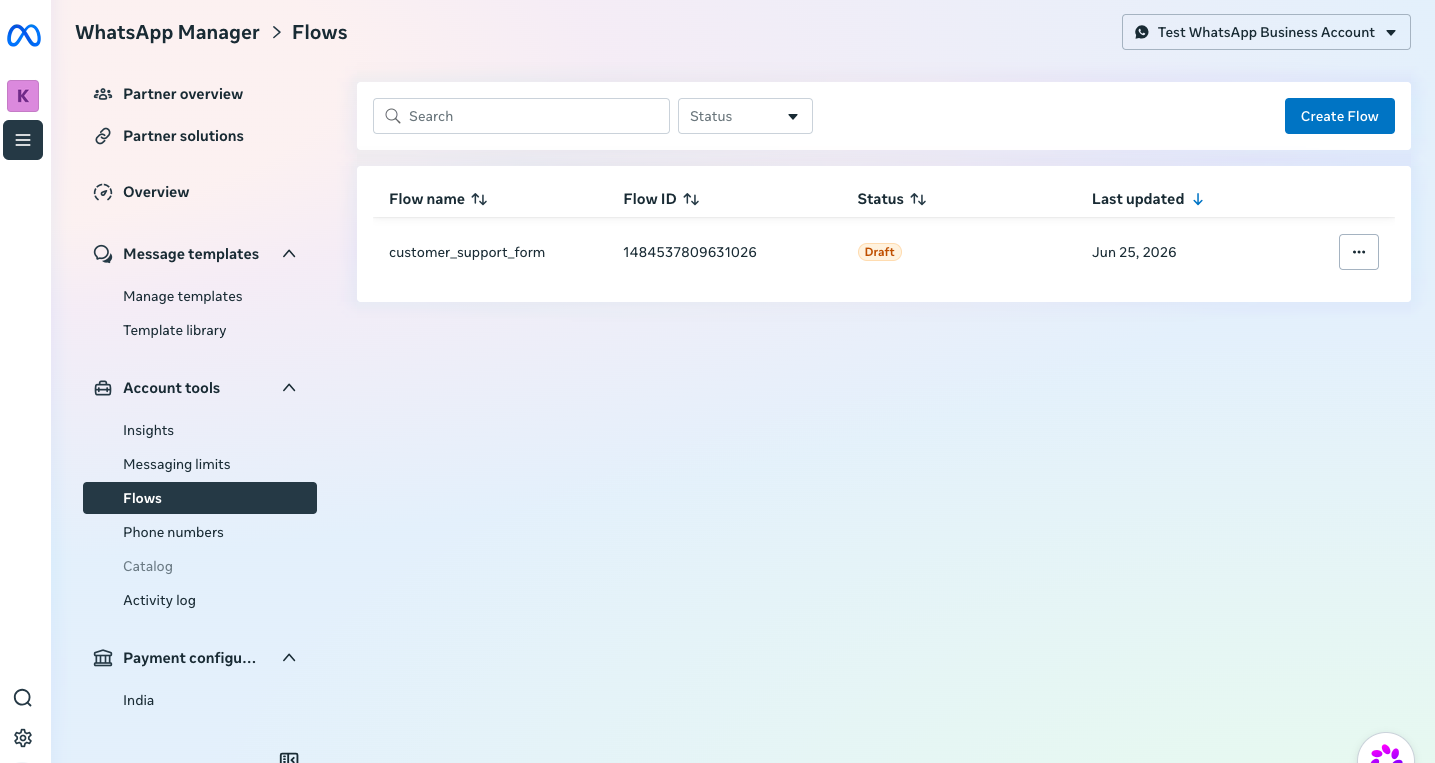
- Click Create Flow, configure the form, and publish it. Meta requires your business to be verified before you can publish a flow.
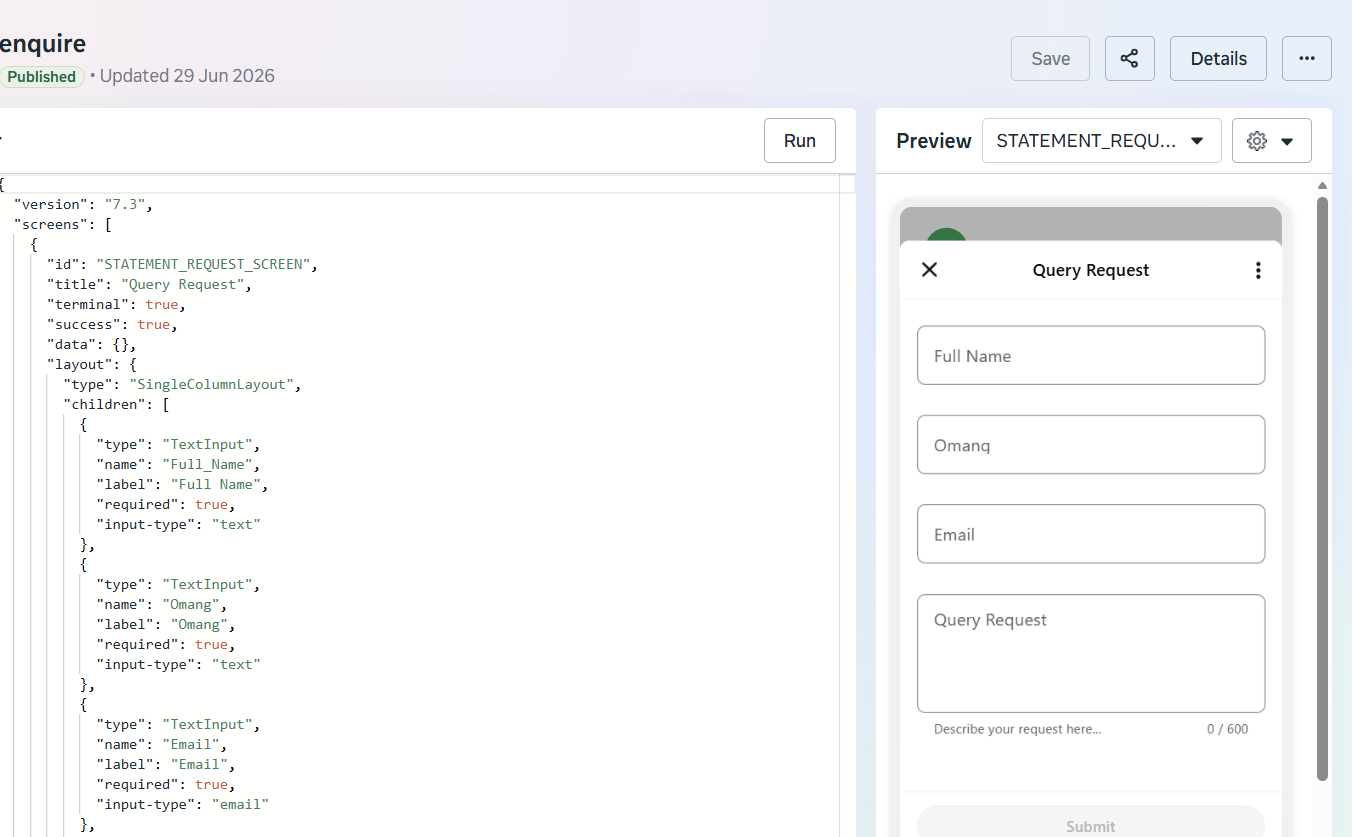
- After publishing the flow, copy its
flow_message_versionandflow_id. You will use these values in the Kommunicate custom payload. - In your Kommunicate bot, create or open the intent from which you want to display the form on WhatsApp.
- Add the following custom payload as the intent's response. Update
body.textand the flow parameters for your form.
{
  "platform": "kommunicate",
  "metadata": {
    "contentType": "300",
    "templateId": "18",
    "flowData": {
      "type": "flow",
      "body": {
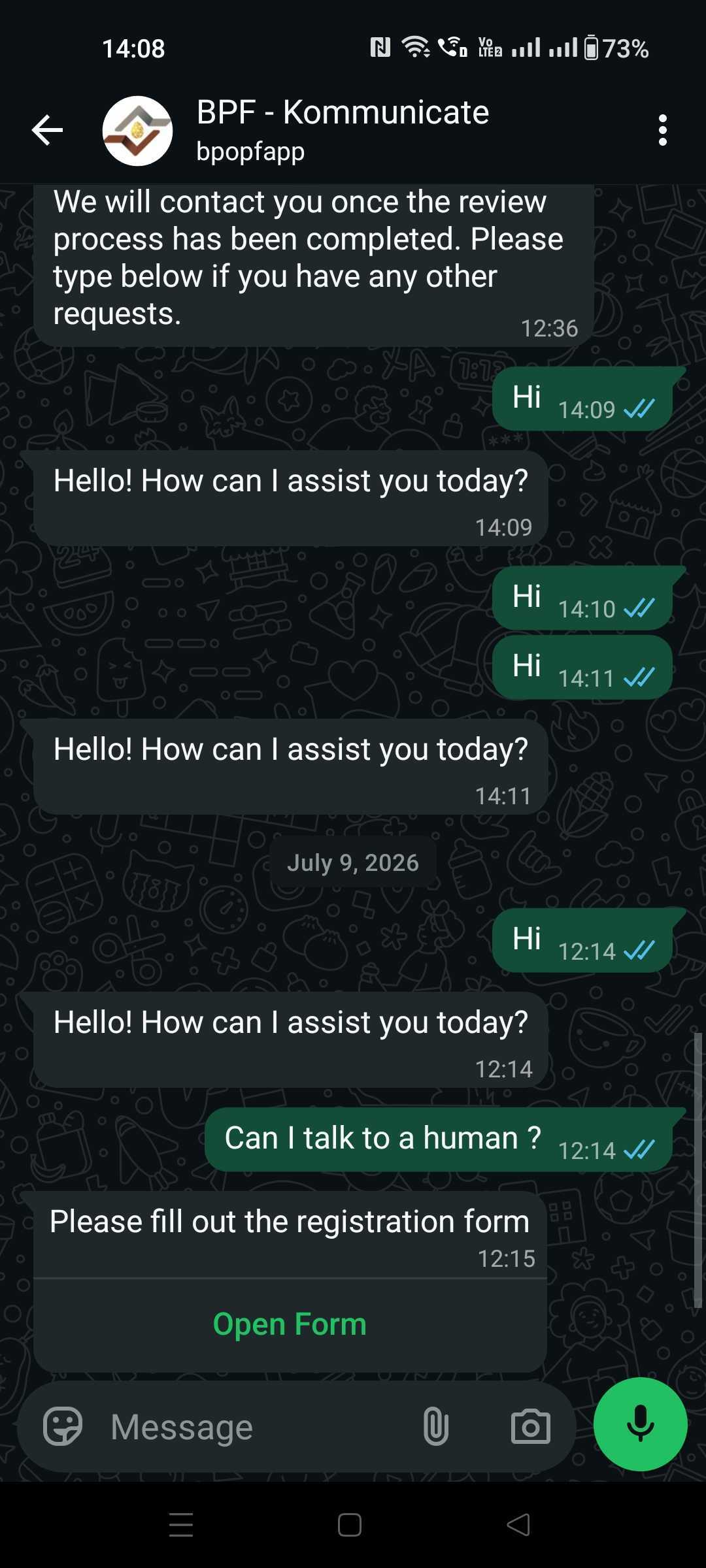
        "text": "Please fill out the registration form"
      },
      "action": {
        "name": "flow",
        "parameters": {
          "flow_message_version": "<FLOW_MESSAGE_VERSION>",
          "flow_id": "<FLOW_ID>",
          "flow_cta": "Open Form",
          "flow_token": "user-123",
          "flow_action": "navigate"
        }
      }
    }
  }
}
Configure the parameters as follows:
| Parameter | Description |
|---|---|
flow_message_version | The message version associated with the published WhatsApp Flow. |
flow_id | The ID of the published WhatsApp Flow. |
flow_cta | The text displayed on the button that opens the form. You can customize this text. |
flow_token | A custom value used to identify or track the flow interaction. |
flow_action | Set this value to navigate to open the flow. |
- Trigger the intent and open the conversation in WhatsApp. Tap Open Form (or the custom button text specified in
flow_cta) to display the form.
Images on WhatsApp
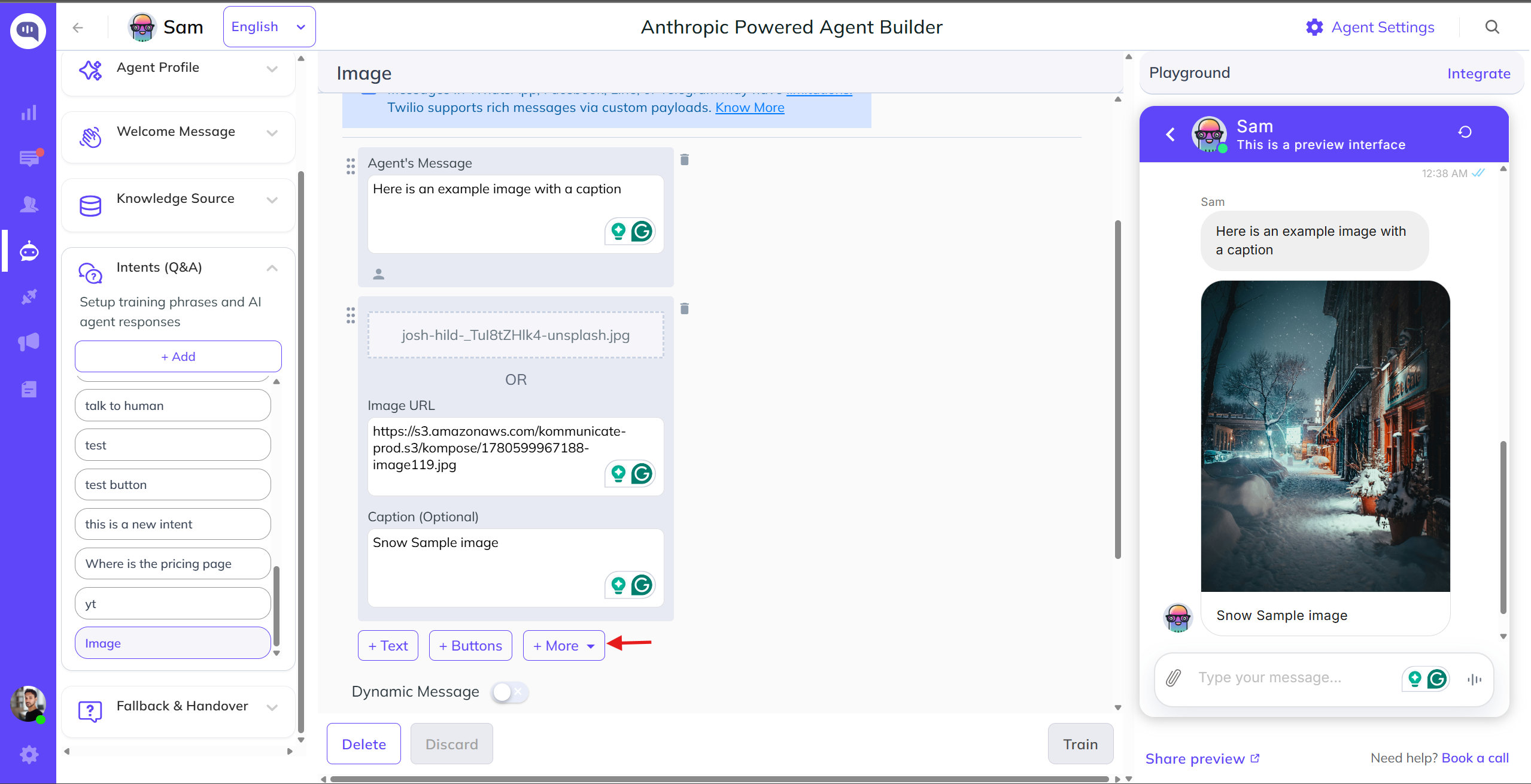
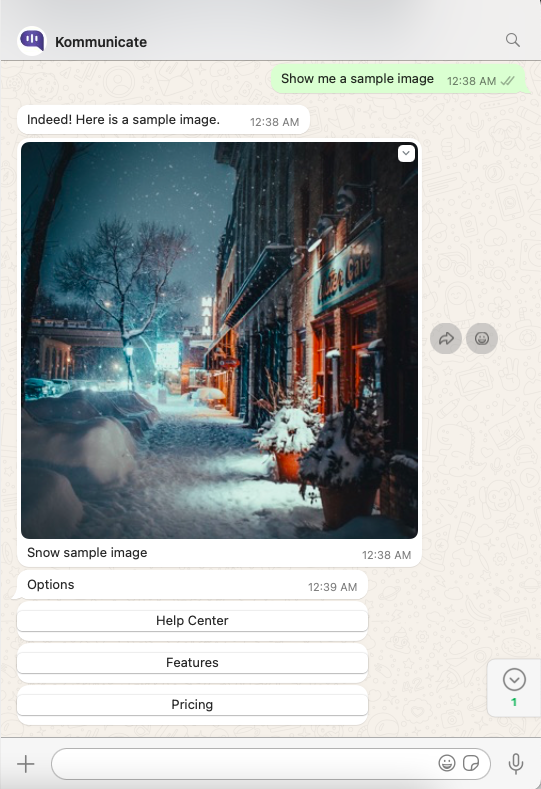
The following is an example of adding an image with a caption and buttons (rich messages).
WhatsApp Location Sharing
Requesting Real-Time Location from Users via WhatsApp
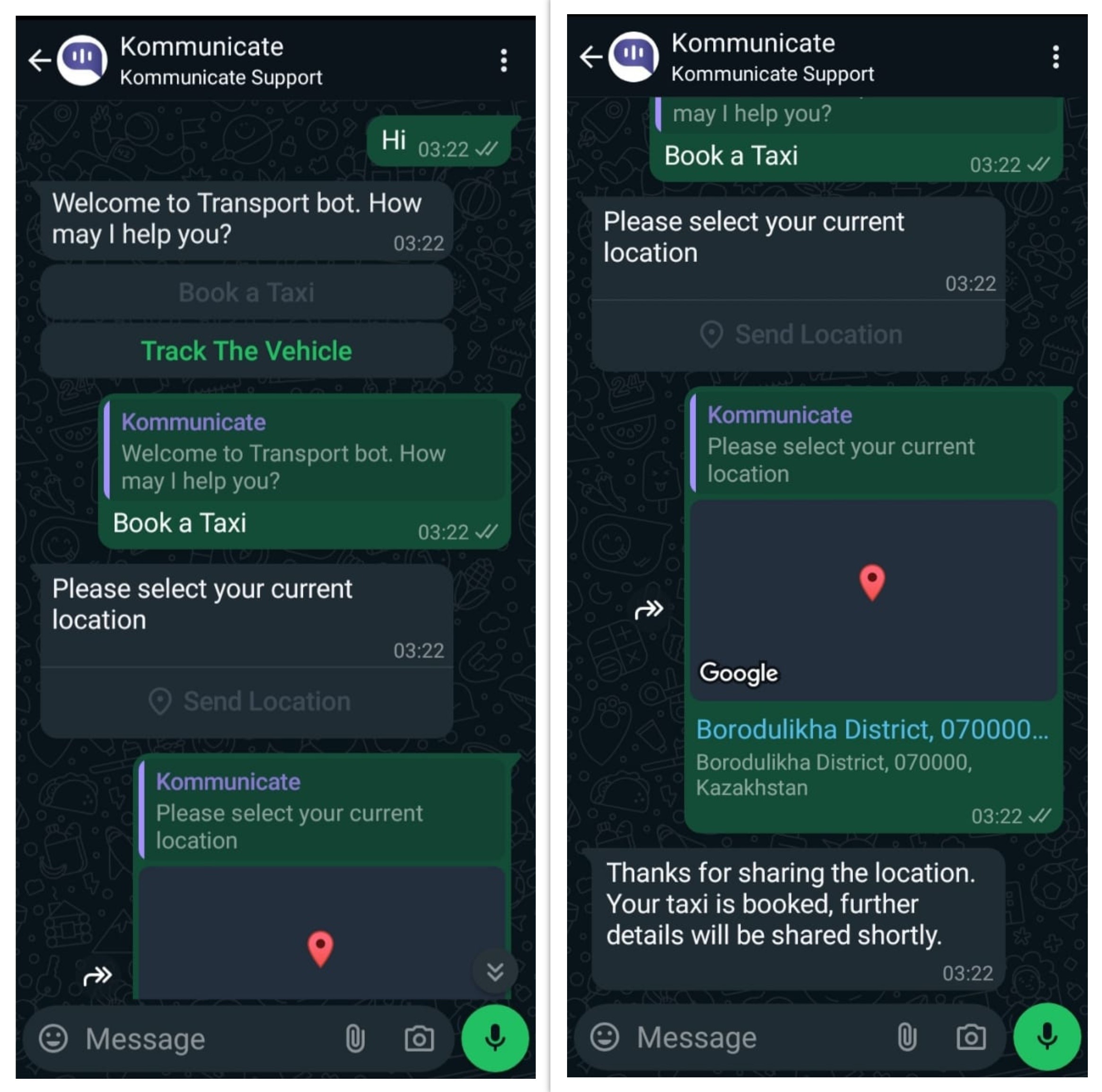
To capture a user's real-time location through WhatsApp, follow these steps:
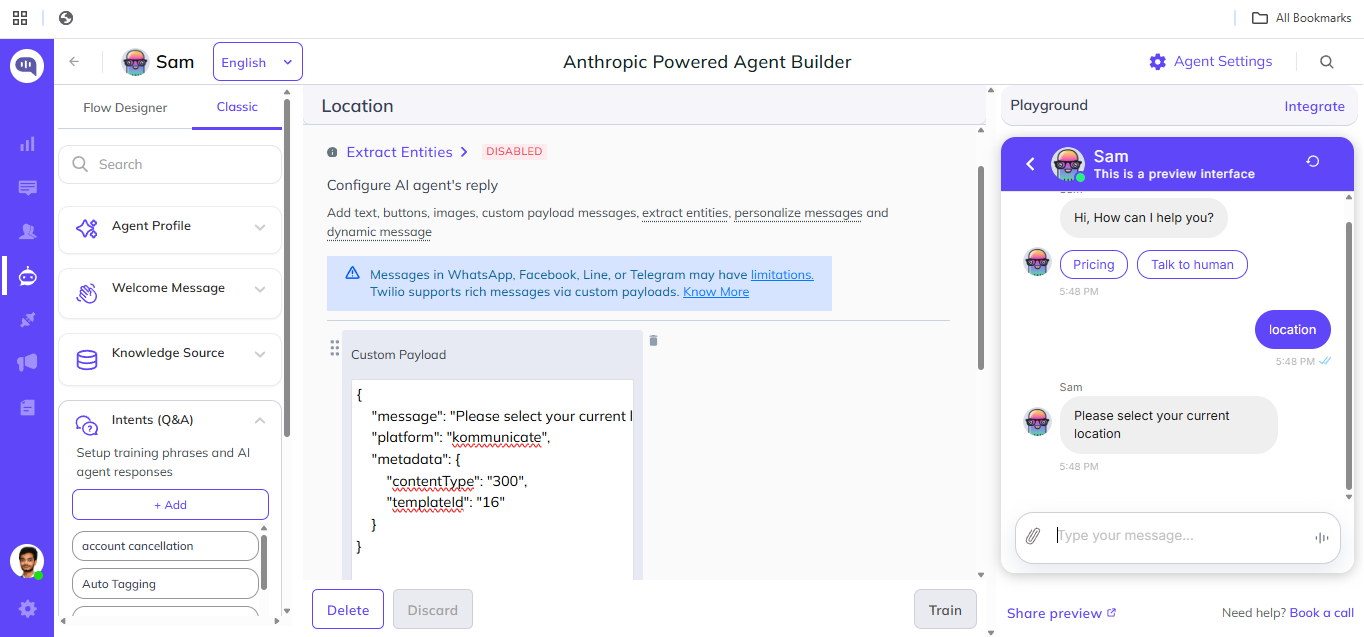
- Configure the Intent: Use the provided custom payload in the specific intent.
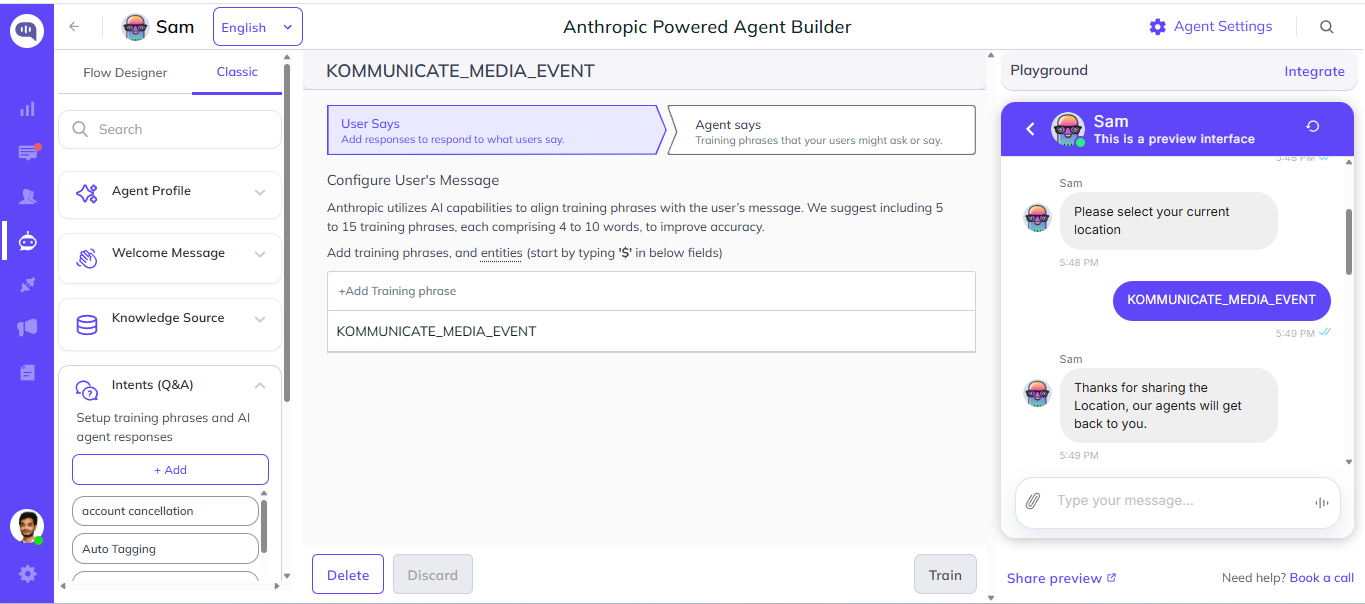
- Trigger Response: Set up a response to be triggered when the user shares their location, using the KOMMUNICATE_MEDIA_EVENT event in the subsequent intent.
This process enables you to request and receive the user's real-time location through WhatsApp.
{
    "message": "Please select your current location",
    "platform": "kommunicate",
    "metadata": {
        "contentType": "300",
        "templateId": "16"
    }
}
Refer to the following screenshots for a visual guide on implementing this feature:
WhatsApp Limitations
Only certain media files are allowed to be sent or received. See more info here
Only template messages will be allowed if more than 24 hours have passed since the last user message.
WhatsApp does not support more than 3 buttons at a time, to optimize your messages for WhatsApp, Kommunicate automatically converts any extra buttons to a list. Additionally, button titles should be equal to or less than 20 characters and non-repeating.
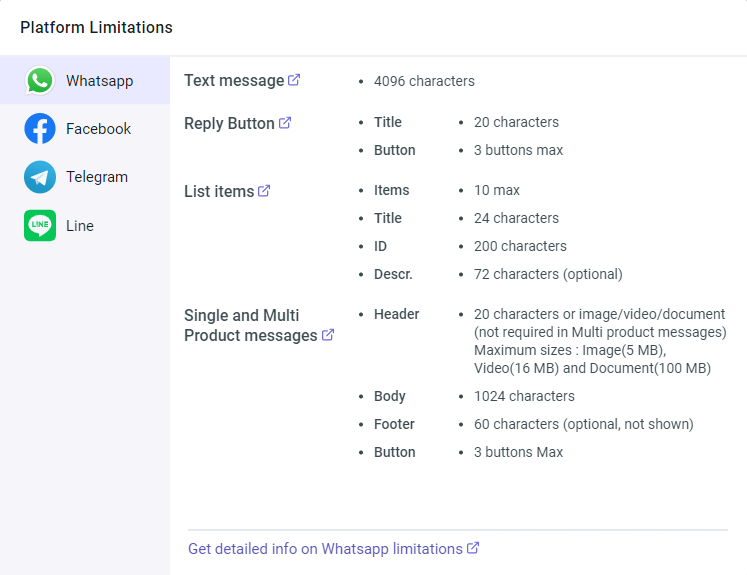
Detailed information on WhatsApp Limitation:
WhatsApp Pricing
To understand the pricing structure for WhatsApp sessions, refer to the official Meta pricing guide:
This pricing applies uniformly across all Business Service Providers (BSPs), including:
- 360dialog
- Twilio
- Meta Cloud
- Gallabox
Note: WhatsApp pricing is determined by Meta and is based on conversation categories (Marketing, Utility, Authentication, and Service) and user location. Charges apply per 24-hour conversation session.