
Helpcenter
Helpcenter
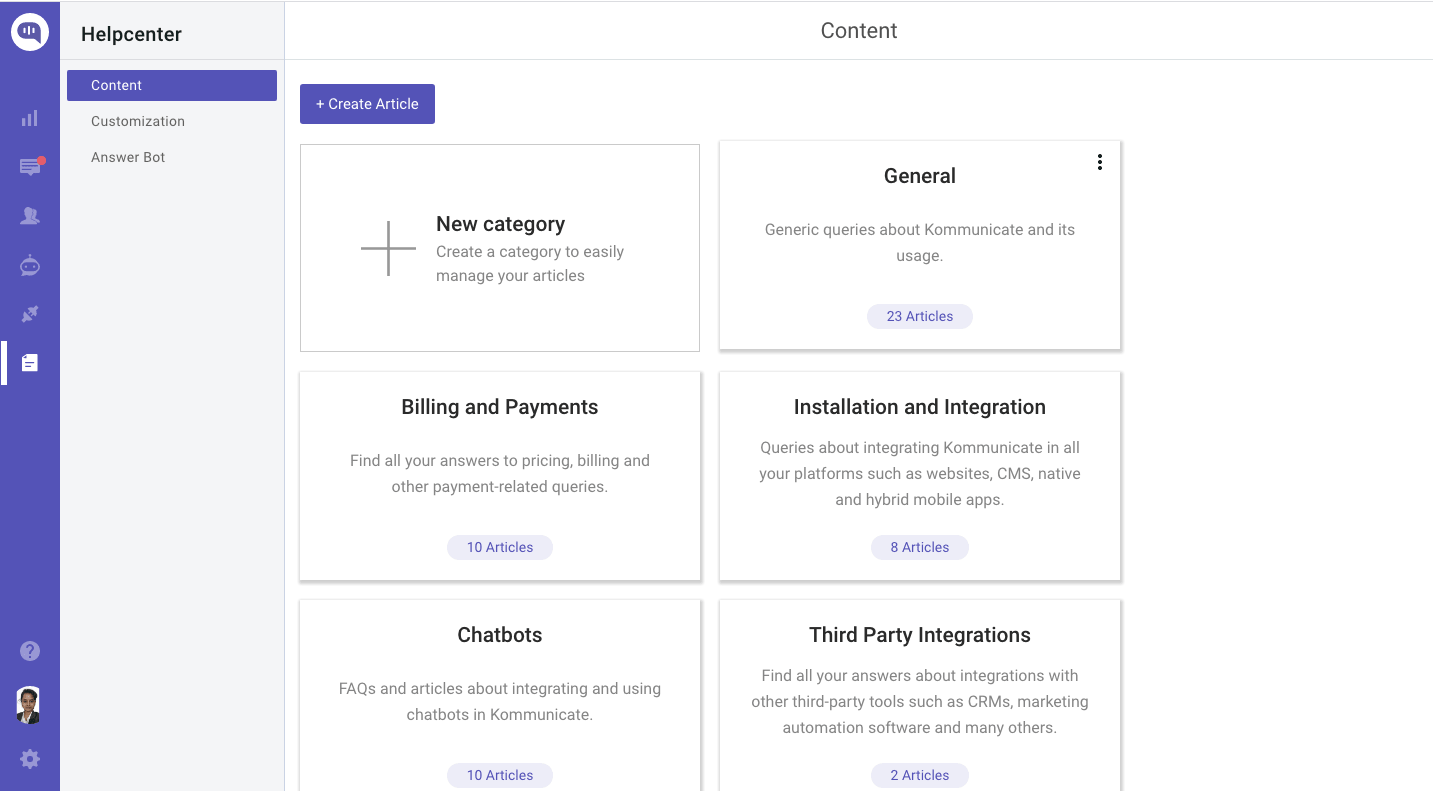
Helpcenter allows you to build a powerful knowledge base and FAQs to deflect incoming tickets and empower customers with self-service. You can host these articles on a dedicated, standalone webpage, and they automatically integrate directly inside your chat widget.
To manage your knowledge base, click the Helpcenter icon on the left sidebar navigation.
Managing Content & Categories
The Content tab gives you a high-level grid view of your knowledge base, making it easy to group and manage your self-service resources.
- Create Articles: Click the + Create Article button at the top left to write a new FAQ or help guide.
- Organize with Categories: You can group related articles into specific cards (e.g., General, Billing and Payments).
- Add Custom Categories: Click the + New Category card to create a fresh group to easily manage your scaling article list.
- Track Volume: Each category card displays an article count badge at the bottom (e.g., 28 Articles), giving you a quick look at your content distribution.
The Customization sub-menu under Helpcenter allows you to brand, style, and configure your dedicated knowledge-base page so it looks like a natural extension of your own website.
Appearance Settings
You can configure the following visual elements to customize the layout:
- Primary Color: Set the hex code for your brand's main color, which will style the header block background on your Helpcenter homepage.
- Headline Text: Customize the main greeting displayed on the header (e.g., "How can we help you?"). There is a maximum limit of 30 characters.
- Searchbar Text: Customize the placeholder text displayed inside the search input field (e.g., "Search in Helpcenter"). There is a maximum limit of 30 characters.
Branding Assets
- Logo: Upload your company logo. For optimal display, use a PNG file that is at least 400 x 200 pixels (Recommended aspect ratio: 2:1).
- Favicon: Upload a browser tab icon. This must be an ICO or PNG file (Recommended aspect ratio: 1:1).
- Show branding toggle: Switch this on or off to control the visibility of the logo header assets.
Show live-chat in the Helpcenter toggle: Enable this option to embed your Kommunicate chat widget directly onto your standalone Helpcenter page, letting customers seamlessly transition to a live conversation if they cannot find answers in your articles.
Page Settings & Custom Domains
Scroll down to the Settings block to manage your metadata, tracking scripts, and domain hosting:
- Homepage Title: Set the meta title text that appears in browser tabs and search engine results (e.g., "Helpcenter | Kommunicate"). There is a maximum limit of 60 characters.
- Google Tag Manager Id: Input your custom GTM container ID (e.g., GTM-XXXXXXX) to easily track visitor behavior, analytics, and page engagement data.
- Set up your custom domain URL: Click this section to route your knowledge base to a branded URL hosted under your own domain (e.g., helpcenter.yourcompany.com) rather than using a default Kommunicate URL structure.
Answer Agent
This section allows your Kompose AI agent to train on and ingest your help center documentation, enabling it to resolve incoming customer inquiries autonomously.
Here is the new documentation section detailing how to connect your knowledge base to your AI agent.
Connecting Helpcenter to AI agent
You can connect your Helpcenter directly to your AI agent. Once synced, your AI agent will automatically resolve incoming customer queries by fetching accurate answers from your published articles and FAQs.
Setting up this automation is a simple two-step process
Step 1: Populate Your Content: Make sure you have added and published your Articles inside the Helpcenter content tab.
Step 2: Link with AI agent: Connect your Helpcenter to your Agent by navigating to the following path in your dashboard:
Kompose Agent Builder -> Knowledge Source -> Knowledge Base -> Help Center -> Connect Helpcenter.
Once connected, the AI agent uses semantic search to scan your Helpcenter articles in real time whenever a customer asks a question, matching their intent to your documentation and delivering instant answers directly inside the chat widget.